FMSC IT Resources Hub
A Centralized Platform for Faculty and Student IT Resources.
WiFi Application Form
Students, fill in your details to request an internet account on the MaCO-WiFi network.
Wi-Fi Connectivity Issues
Resolve Wi-Fi connectivity issues by verifying network settings, credentials, and device connectivity Staff | Students
Back to all resources
Troubleshooting MaCOWiFi Connection Issues - Students
If your laptop or phone won't connect to the MaCoWiFi, isn't accepting your password, or keeps disconnecting, follow these steps in order.
-
Check your username & password formatYour WiFi username must be in the
20xxbadxxx. Make sure there are no extra spaces and that Caps Lock is off. Passwords are case-sensitive. -
Install the MaCoWiFi CA certificateSome mobile devices can connect to the Wi-Fi network without a CA certificate. If you experience connection issues, download and install the CA certificate from the provided Google Drive link and try connecting again. Download CA Certificate
-
Forget the network and reconnectOn your device's WiFi settings, "Forget" or "Remove" the MaCoWiFi, restart your device, then reconnect from scratch using the steps in the connection guide.
-
Reset your WiFi password (students)If you keep getting an authentication error, your password may have expired. Use the MaCo WiFi password change card above to reset it using your email or username. Password Reset Link, You can only reset at Faculty.
-
Check for an account lockoutRepeated incorrect password attempts can temporarily lock your account. Wait 15–30 minutes before trying again, or contact the NOC team to unlock it sooner.
-
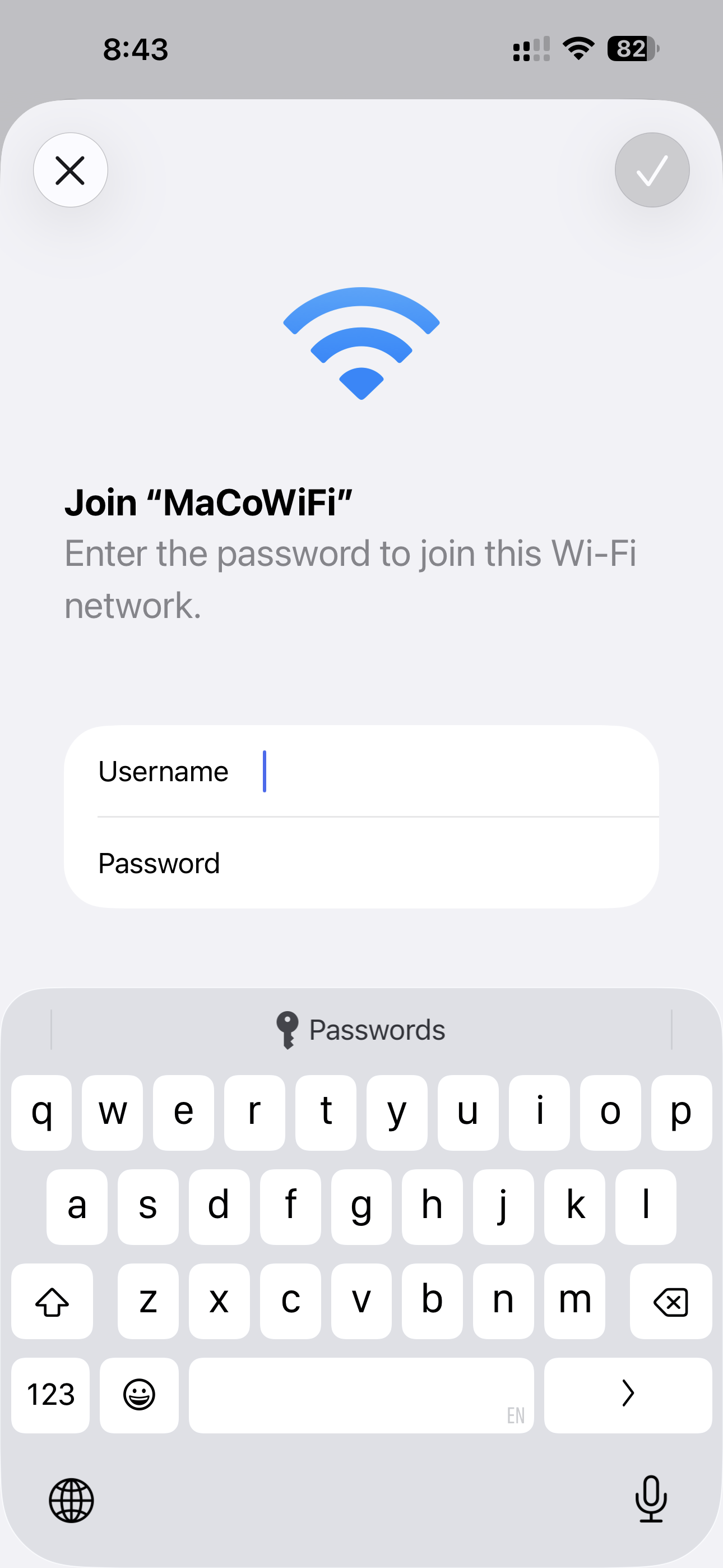
Connect to the FMSC Network on IOS Devices (e.g., iPhone)Step 1: Select the MaCoWiFi from the list of available Wi-Fi networks.
Step 2: Enter your Username and Password.
Step 3: Tap Connect to join the network.
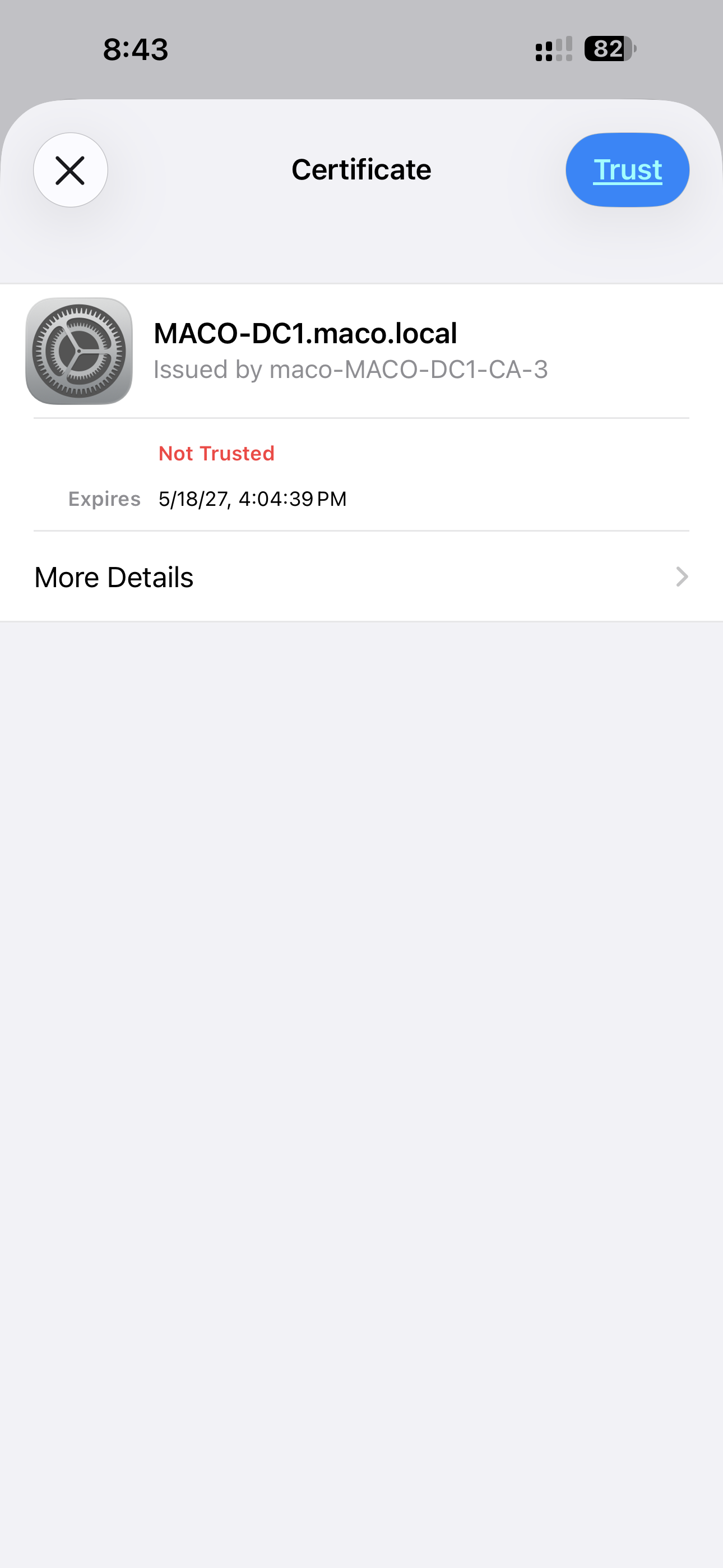
Step 3: Trust the certificate.
-
Connect to the MaCo WiFi on Android Devices (If you have "Dont't validate"option.)Step 1: Select the MaCoWiFi from the list of available Wi-Fi networks.
Step 2: Set EAP Method to PEAP.
Step 3: Set Phase 2 Authentication to MSCHAPV2.
Step 4: Set CA Certificate to Don't validate.
Step 5: Enter your Username in the Identity field (use lowercase letters only).
Step 6: If you have Anonymous Identity field, enter anonymous. If this is not accepted, enter your username instead.
Step 7: Enter your Password. Step 8: Tab connect to join the network.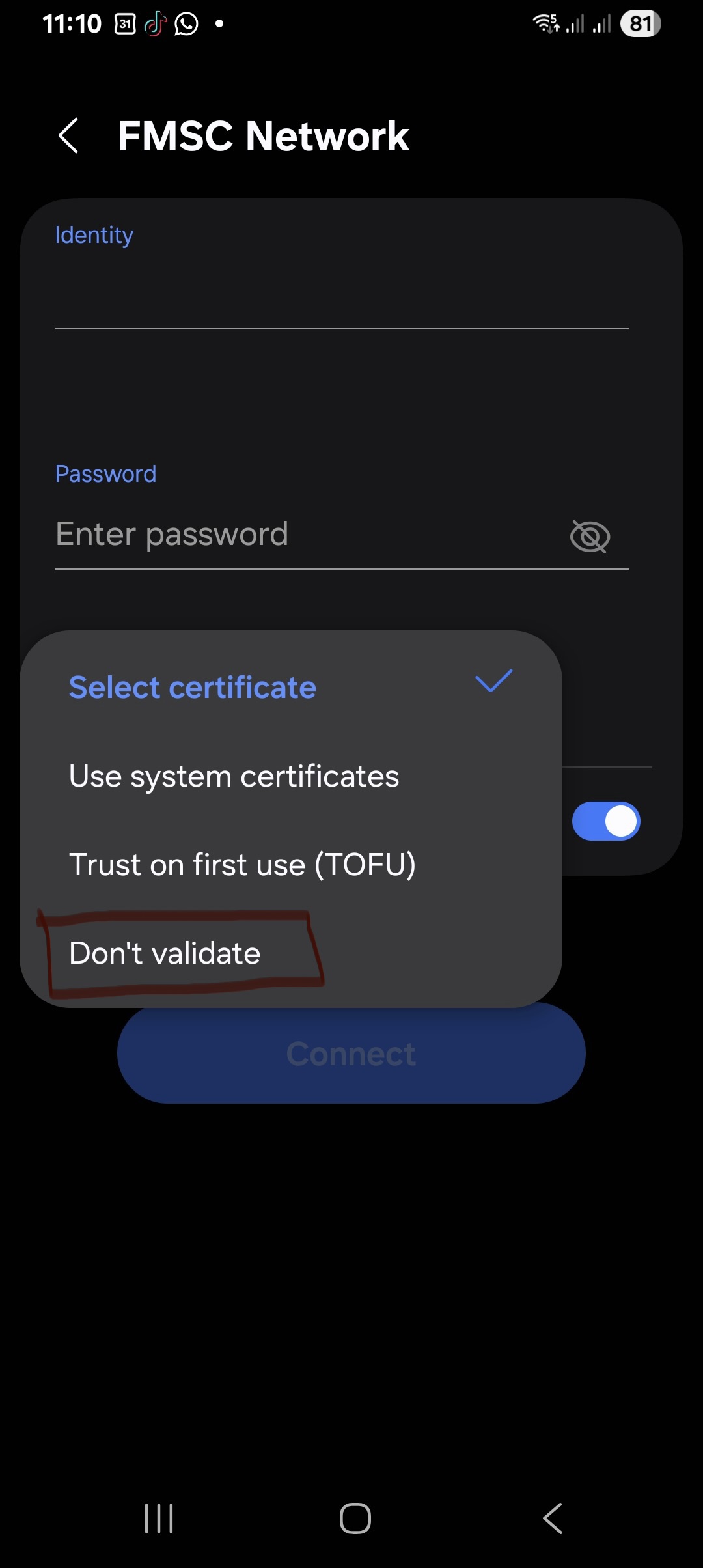
-
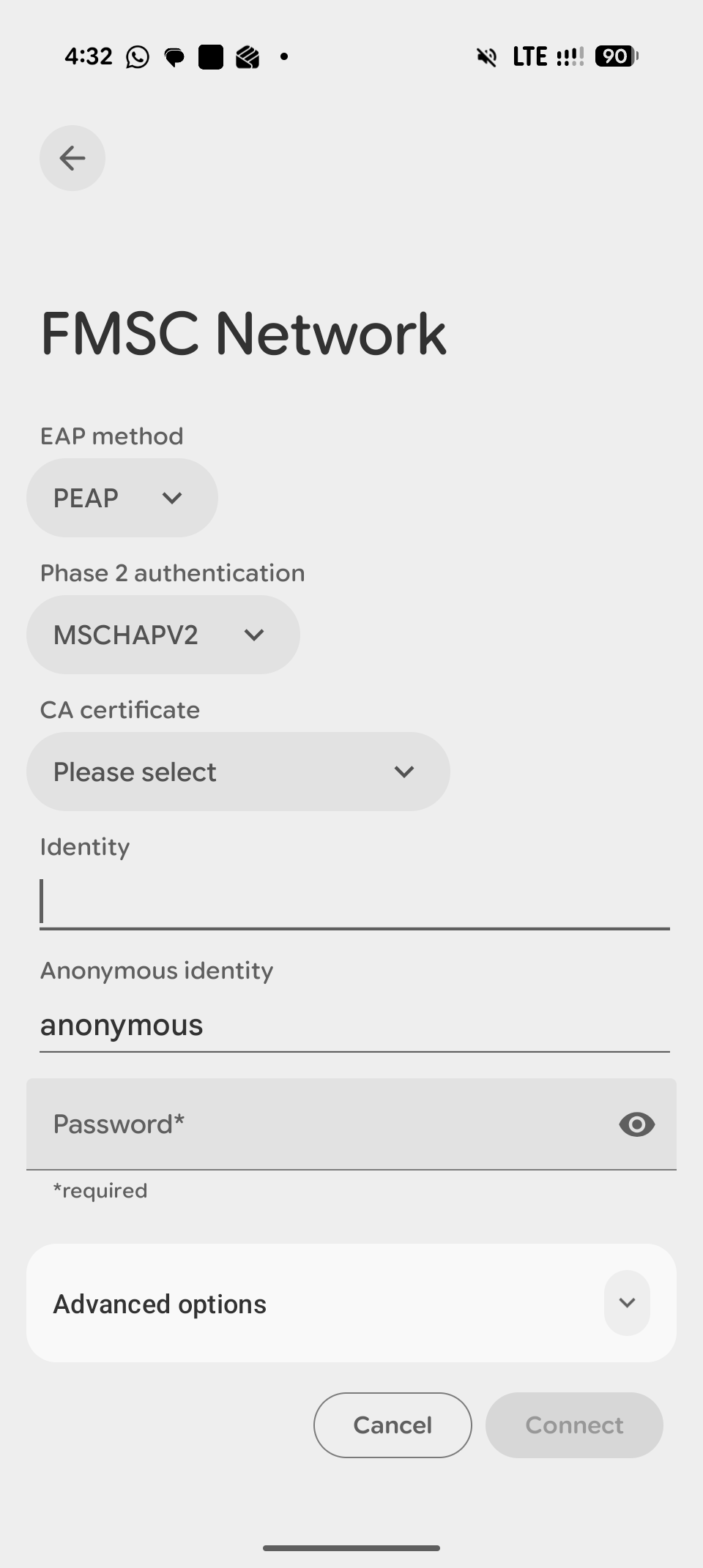
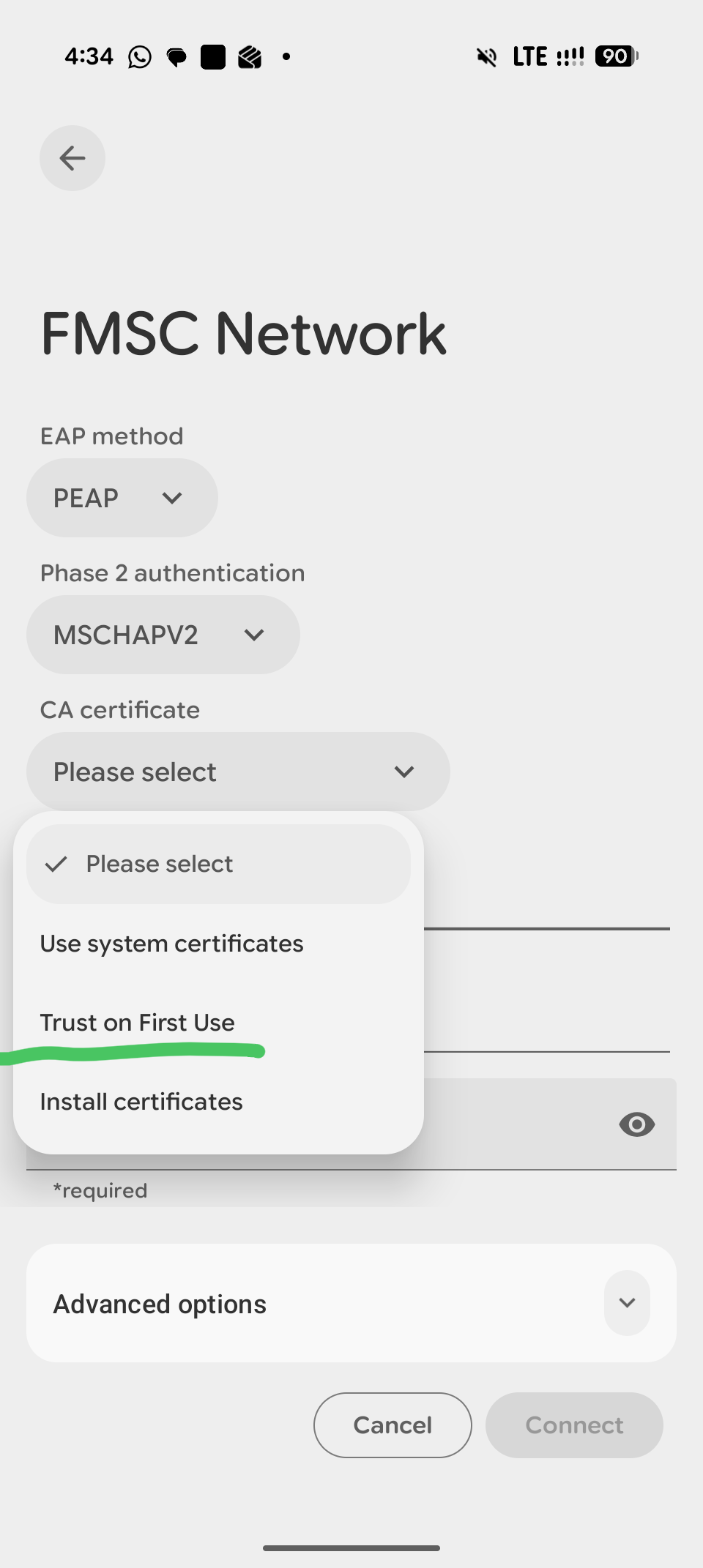
Connect to the MaCo WiFi on Android Devices(If you dont't have "Dont't validate" option)Step 1: Select the MaCoWiFi from the list of available Wi-Fi networks.
Step 2: Set EAP Method to PEAP.
Step 3: Set Phase 2 Authentication to MSCHAPV2.
Step 4: Set CA Certificate to Trust on First Use.
Step 5: Enter your Username in the Identity field (use lowercase letters only).
Step 6: In the Anonymous Identity field, enter anonymous. If this is not accepted, enter your username instead.
Step 7: Enter your Password.
Step 8: Tap Connect to join the network.
-
How to Install a CA Certificate on Android Devices (e.g., Google Pixel)Certain Android devices require a CA certificate to be installed before connecting to the network. If your device prompts for a CA certificate, download the certificate from the Google Drive link provided and install it on your device. For detailed installation instructions, please refer to the attached video.
Step 1: Select the MaCoWiFi from the list of available Wi-Fi networks.
Step 2: Set EAP Method to PEAP.
Step 3: Set Phase 2 Authentication to MSCHAPV2.
Step 4: Download CA Certificate from this link.
Step 5: Please navigate to the "WiFi Certificate" section in your mobile settings and install the certificate named "macoWiFica".
Step 6: Set CA Certificate to macoWiFica.
Step 7:Minimum TLS version : TLS v1.2
Step 8: Online Certificate Status : Do Not Verify
Step 9: Domain : maco.local
Step 7: Enter your Username in the Identity field20xxbadxxx.
Step 8: In the Anonymous Identity field, enter anonymous. If this is not accepted, enter your username instead.
Step 9: Enter your Password.
Step 10: Tap Connect to join the network.
-
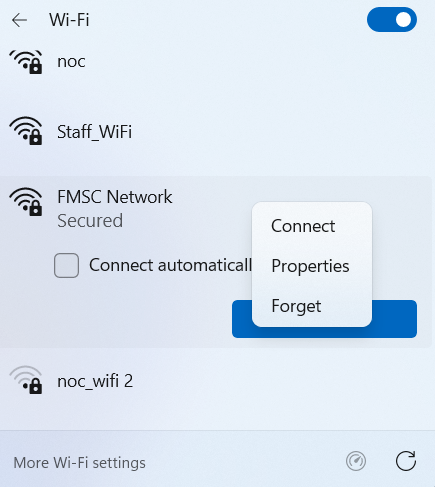
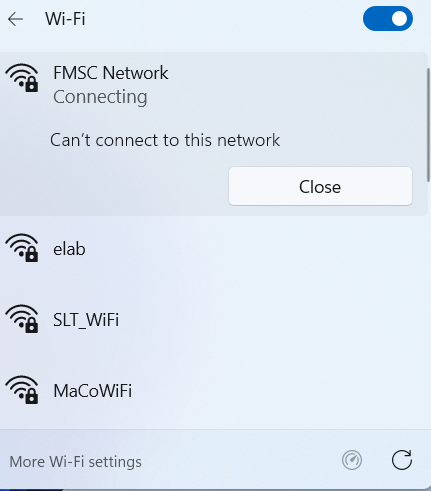
Can't connect to this network - Desktop/Laptop PCIf you see this kind of message, remove (forget) the network then connect with your username and password. Refer to the screenshots below.
-
For general Wi-Fi connectivity issues, you can use the following checklist:
🔧 Basic Checks
- Ensure Wi-Fi is turned on.
- Confirm Airplane Mode is off.
- Verify that the correct Wi-Fi network (SSID) is selected.
- Check that the Wi-Fi password is correct.
- Move closer to the Wi-Fi access point to rule out weak signal issues.
📱 Device Checks
- Restart the device.
- Forget the Wi-Fi network and reconnect.
- Verify that the device has a valid IP address.
- Check the date and time settings are correct.
- Ensure the device operating system is up to date.
Avoid entering an incorrect password repeatedly — this can lock your account and may require NOC assistance to unlock.
Still can't connect? Contact the NOC team using the details in the Contact Us section below — include your username, device type, and a screenshot of the error if possible.
Contact Us
Reach out to the NOC team for IT support
Email
noc@maco.jfn.ac.lk
Mobile
+94 77 358 0936
WhatsApp
+94 77 358 0936
HelpSite
help.maco.jfn.ac.lk
Faculty Website
maco.jfn.ac.lk
University Website
jfn.ac.lk
Faculty of Management Studies & Commerce
University of Jaffna
© 2020 – 2026 noc@fmsc, UoJ.